An easy, secure, and private way to pay.
Apple Pay lets you make purchases with your Metrobank card using any Apple device — just like you would with your physical card — in stores, online, and in apps.
Apple Pay on one.
Apple Pay on all.
Apple Pay is built into iPhone, Apple Watch, Mac, and iPad. If you add your Metrobank card to Apple Wallet on iPhone, you'll have the option to add it to your other Apple devices in one easy step.
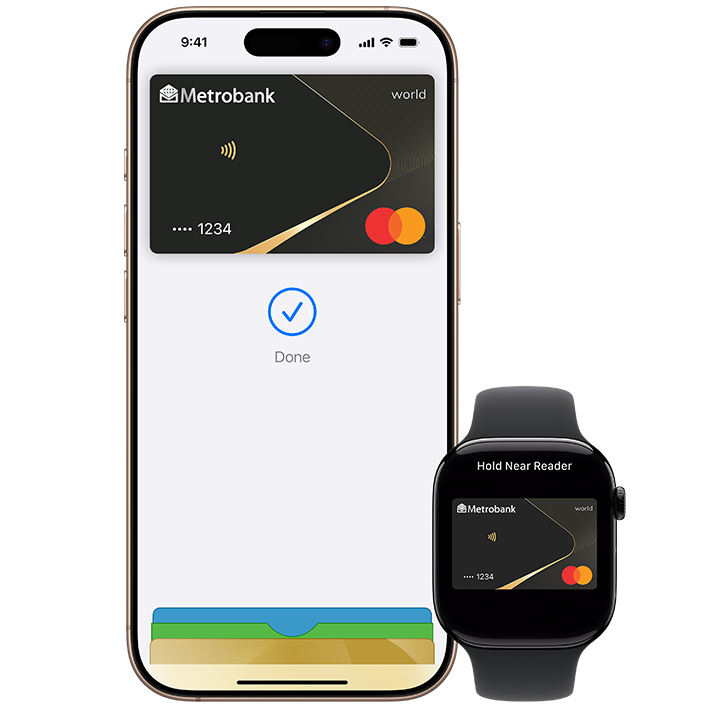
Shop in person. Online.
Or in apps.
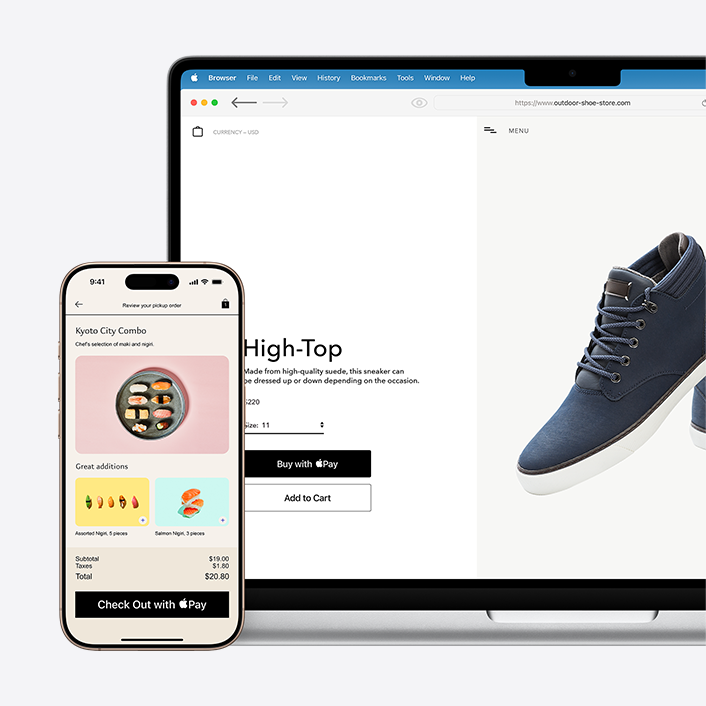
Apple Pay is accepted by millions of merchants around the world. Just look for the Apple Pay logo or the contactless payment symbol at checkout and pay with your Metrobank card. To check out with Apple Pay if you’re on a computer but not using Safari or a Mac, click the Apple Pay button and scan the code that appears on screen with your iPhone.*
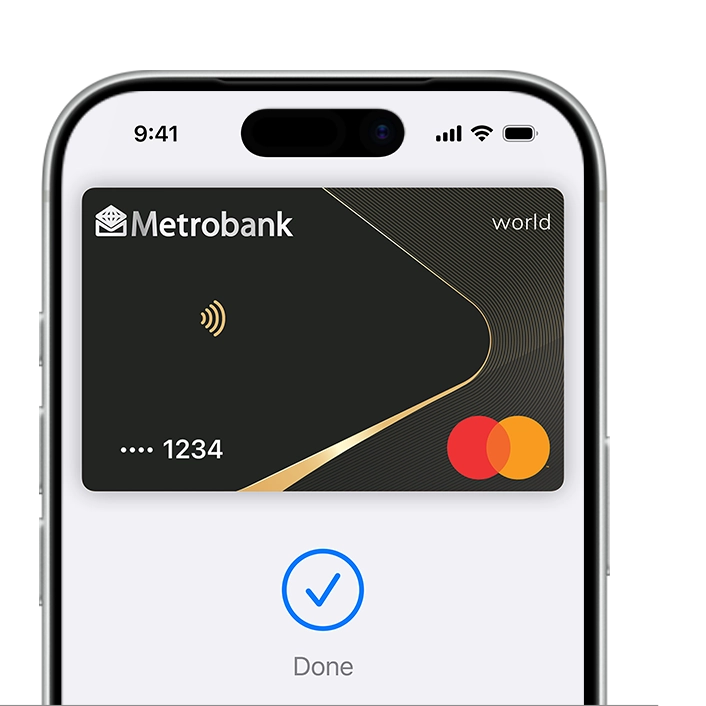
Tap. Pay. Done.
Apple Pay lets you skip entering your address or CVV code at checkout — so you can pay with your Metrobank card with a simple glance or touch.
Designed to be secure.
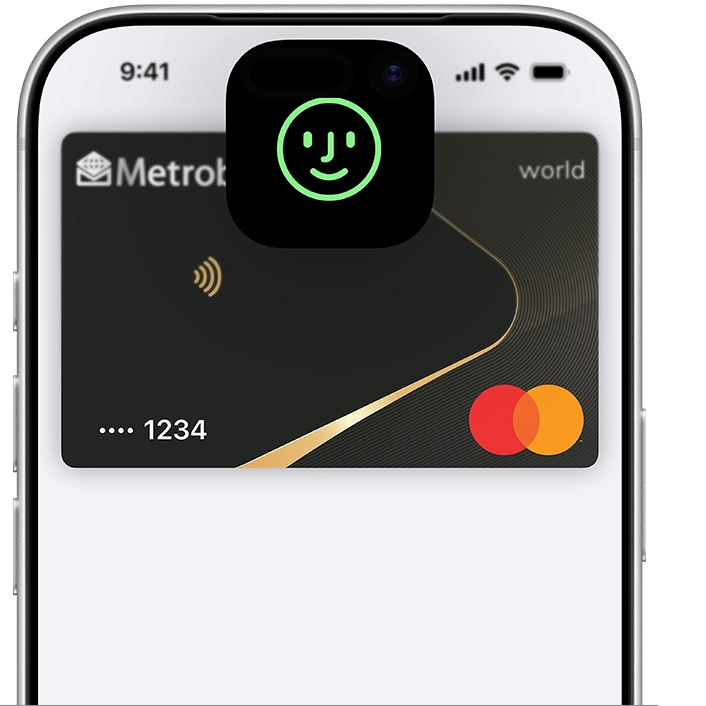
So only you can pay.
Every Apple Pay transaction requires authentication through your device's built-in security features, including Face ID, Touch ID, and your passcode. Your debit or credit card number is never shared with merchants or stored on Apple servers. And if you misplace your iPhone, you can quickly mark it as lost on Find My to suspend your Metrobank card.
Add your card
Set up Apple Pay in 2 ways
If viewing the site on mobile, swipe through to explore both setup methods.
- Log-in to the Metrobank App
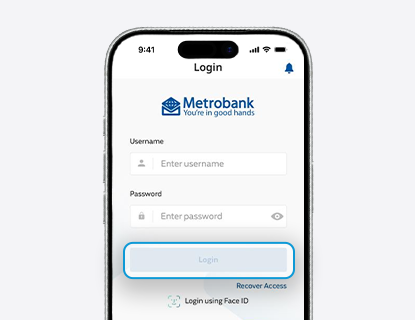
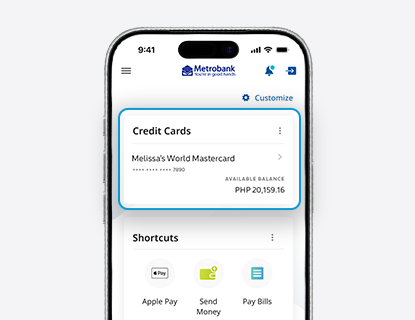
- Tap the Metrobank card that you want to enroll
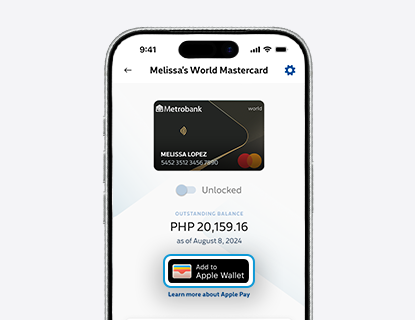
- Tap the “Add to Apple Wallet” button
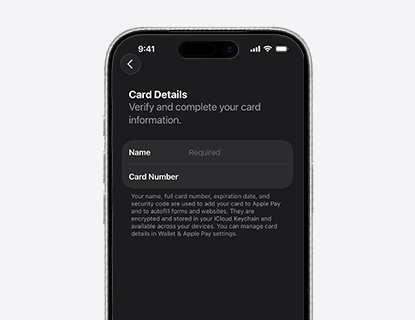
- Follow the steps on the screen to add your card
The card benefits you love. With Apple Pay.
When you use your Metrobank card with Apple Pay, you’ll earn the benefits and rewards you love — just like you would with your physical card.
*Legal disclaimer
Apple Pay in More Browsers: Available with participating merchants on compatible browsers. Compatible browsers require WebSocket support. This feature is not available in all markets. Software requirements apply. To ensure you have all features of this product, update your iPhone or iPad to the latest software version.
Apple Pay is a service provided by Apple Payments Services LLC, a subsidiary of Apple Inc. Neither Apple Inc. nor Apple Payments Services LLC is a bank. Any card used in Apple Pay is offered by the card issuer.
To use Apple Pay, you need a supported card from a participating card issuer. To check if your card is compatible with Apple Pay, contact your card issuer.
Apple Pay is not available in all markets. See apple.com/ios/feature-availability/#apple-pay for more information.
Features are subject to change. Some features, applications, and services may not be available in all regions or all languages and may require specific hardware and software. See apple.com/ios/feature-availability/#apple-pay for more information.
The Contactless Symbol is a trademark owned by and used with permission of EMVCo, LLC.